Appearance
Monitoring a rollout
After you ship a release, Fleet tracks every device deployment so you can watch progress and intervene if something goes wrong.
Watching release progress
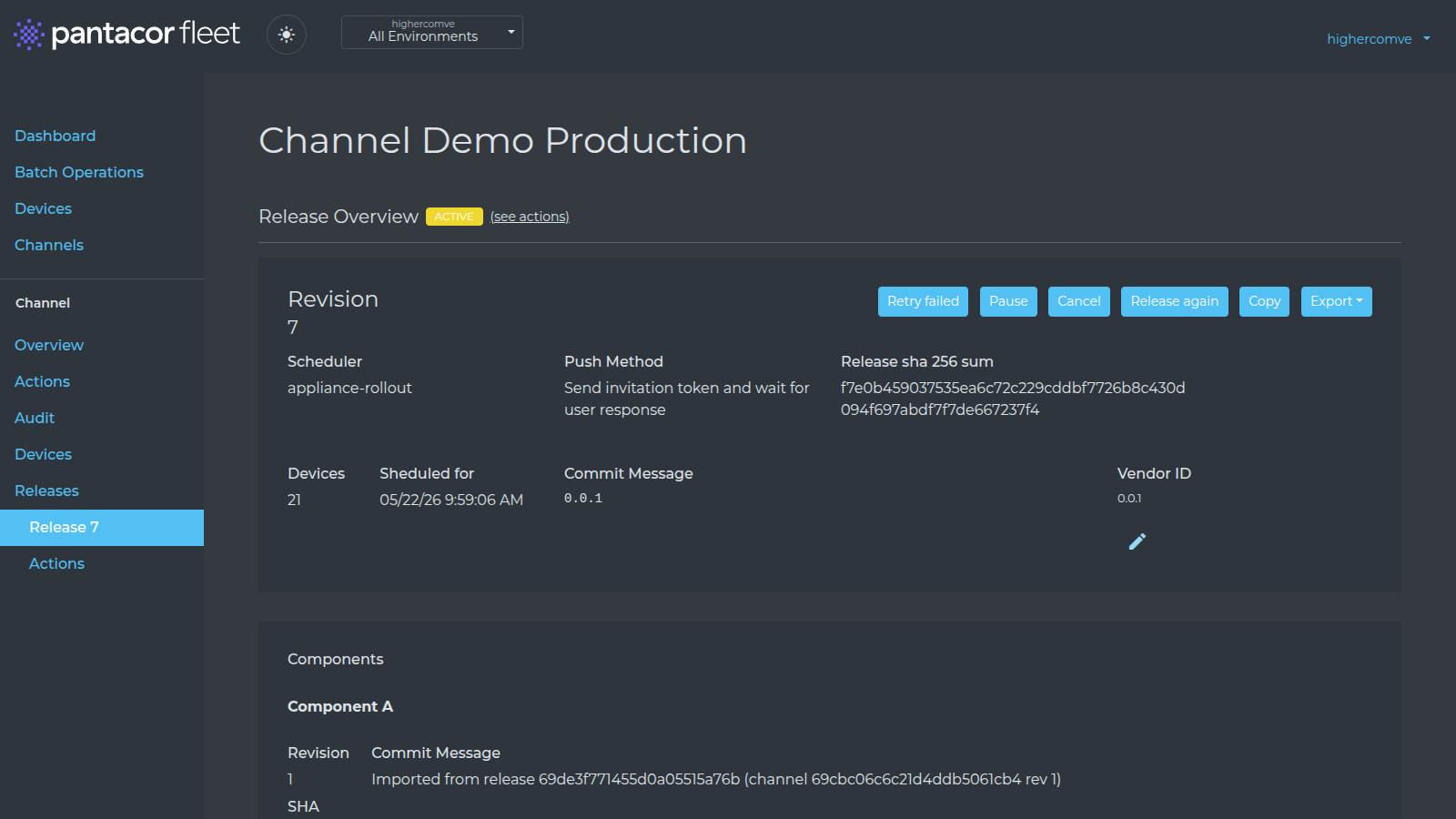
Open the release detail view (from the channel's Releases tab) to see overall progress — how many deployments are done, pending, or failed.
Inspecting deployments
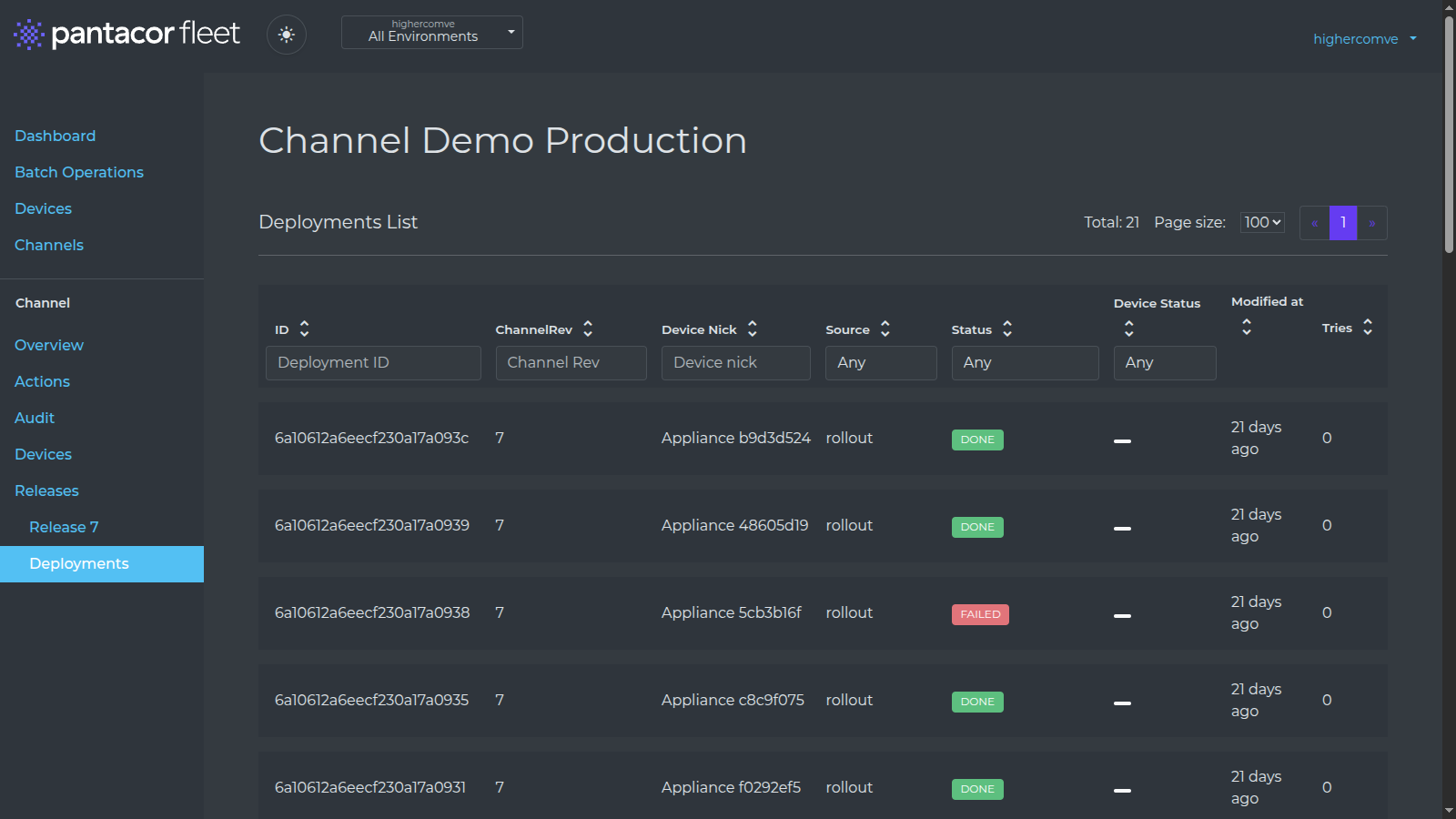
The Deployments view inside a release lists one row per device, with status, timestamps, and error messages. Filter by status to find failing devices, and open a deployment to read its logs.
When to intervene
The right action depends on how widespread the failures are and how far the rollout has progressed:
- A few isolated failures: open those deployments, read the error, and Retry once the cause is fixed.
- Widespread failures early in a rollout: Pause the release to stop new deployments while you investigate.
- A bad release that must not reach more devices: Cancel it and ship a fixed release.
- Rollout-type releases enforce error thresholds automatically; see the push methods & rollouts concept page for how waves and thresholds work.
Auditing past actions
Every play, pause, and cancel is recorded in the audit log, so you can always reconstruct who did what to a release and when.
Related
- Releases — create and manage software versions.
- Deployments — track delivery to each device.
- Audit log — see history of workspace changes.