Appearance
The Fleet interface
This guide describes Fleet from the web UI — what each screen is for and what you can do there. If you want to understand the underlying ideas first (what a channel or a release is), start with Concepts.
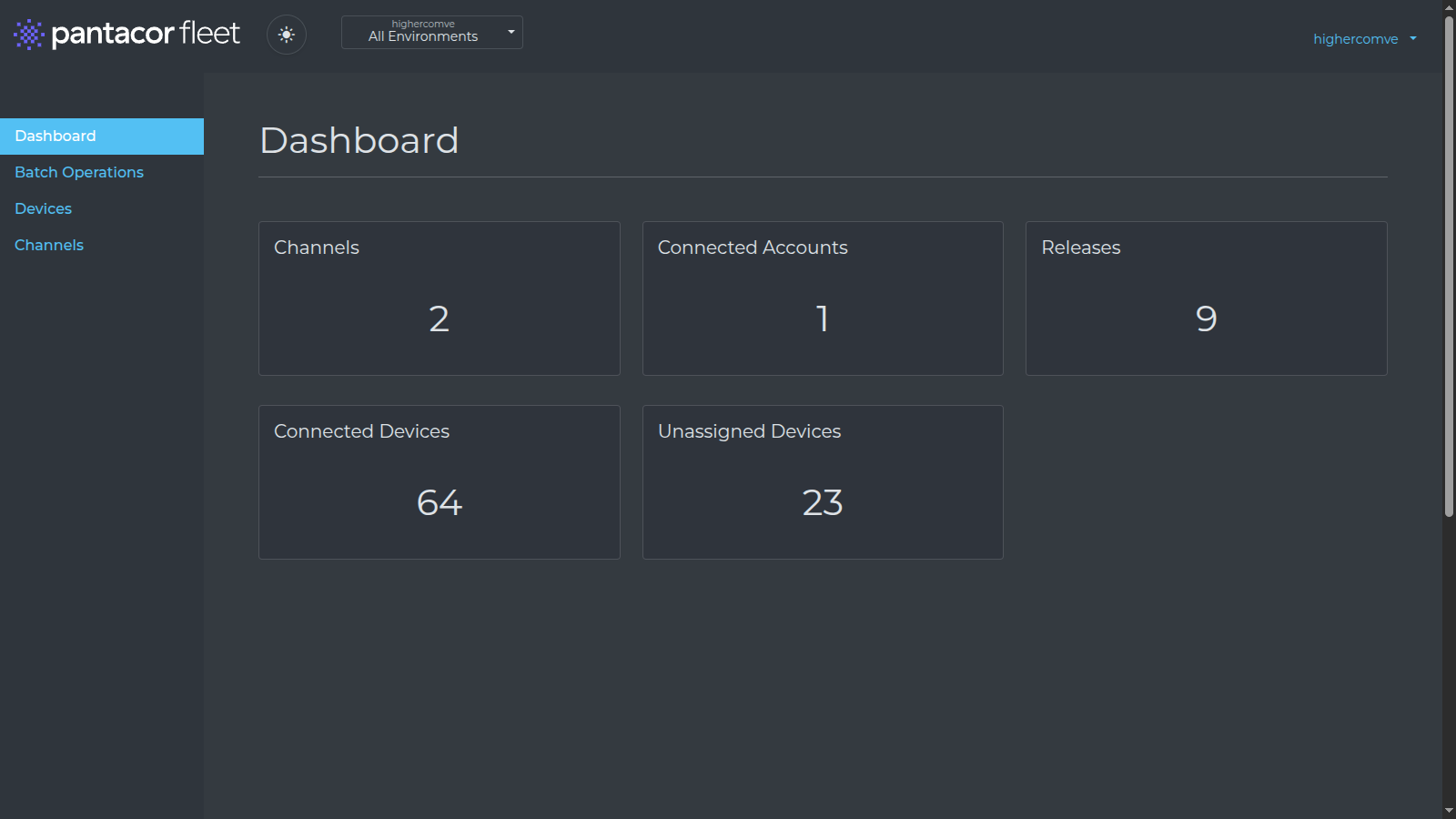
Navigation
Fleet is organized into sections you reach from the sidebar:
| Section | What it's for |
|---|---|
| Devices | Browse and manage the machines you update. |
| Channels | Define groups of devices and the software they track. |
| Releases | Create and ship versioned software. |
| Deployments | Watch a release's updates reach each device (inside a release). |
| Batch operations | Review bulk actions taken across many devices. |
| Assignment diagnostics | Understand why a device is (or isn't) matched to a channel. |
| Appliances | Inspect multi-component appliance models (from the devices list). |
| Environments | Separate your fleet into contexts like production and staging. |
| Permissions | Control who has access and what they can do. |
| Invitations | Accept access you've been granted. |
| Tokens | Create API tokens for integrations. |
| Audit log | See a history of every change. |
| Account & settings | Theme and account preferences. |
A typical workflow
Most day-to-day work moves left to right across four of those sections: you group devices into a channel, the channel produces a release, you play the release to create one deployment per device, and you watch them land — stepping in to retry, pause, or cancel if something goes wrong.
Patterns you'll see everywhere
Most screens share the same building blocks, so once you learn them on one screen you know them on all of them.
Lists, filtering, and sorting
List screens (devices, releases, deployments, and so on) are paginated and support filtering and sorting:
- Filter by typing into a search field or choosing from dropdowns (channel, status, type, environment, …). You can combine several filters at once.
- Sort by clicking a column header to toggle ascending/descending.
Selecting many items at once
List screens let you select multiple rows with checkboxes and then apply one action to all of them — for example, assigning a group of devices to a channel or removing them. Bulk actions are recorded as batch operations you can review afterward.
Status tags
State is shown with color-coded tags (for example green for success, red for failure, amber for in-progress). The same vocabulary is explained in the statuses reference.
Live progress
When something is running — a deployment, a rollout, a batch operation — the screen updates on its own and shows progress, then stops refreshing once the work reaches a final state. You don't need to reload the page to follow along.
Confirmations
Destructive actions (deleting a device, revoking a token, canceling a release) ask you to confirm first, and some require you to type the item's name to proceed.
Next steps
- New to Fleet? Read Devices and Channels to see how groups are formed, then Releases to ship an update.
- Want the concepts behind the screens? See How Fleet works.