Appearance
Environments
The Environments screen lets you separate your fleet into distinct contexts — for example production and staging — and control who has access to each. For the underlying concept, see Environments.
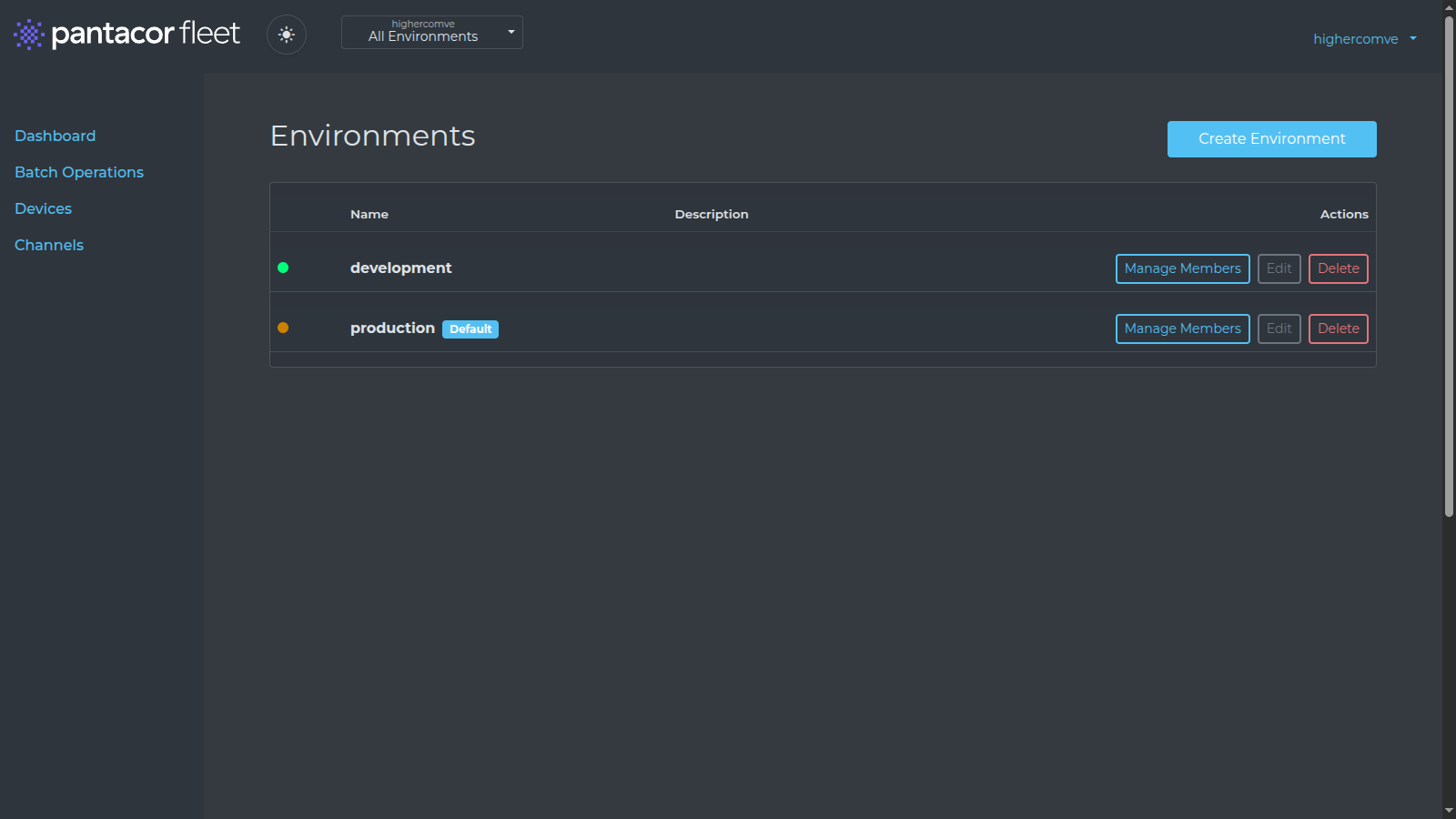
Managing environments
From this screen you can:
- Create an environment with a name, description, and color.
- Edit an environment's details.
- Delete an environment (with confirmation).
- Mark one environment as the default.
The color you choose is used as a visual indicator wherever the environment appears across the UI.
Members and access
An environment has its own members and roles. From an environment you can:
- View members — the users who have access.
- Invite users to the environment and assign each a role.
- Edit a member's role or remove them.
A member's role in an environment applies only to that environment's devices, channels, releases and deployments. Custom roles can be assigned per environment too, from the member's permission page; see Access control for how environment roles combine with workspace roles.
Invitations you've been granted to an environment appear on your Invitations screen, and overall access is managed alongside workspace access in Permissions.
Related
- Permissions — workspace-wide access control.
- Invitations — accept access you've been granted.
- Environments (concept) — what an environment is.