Appearance
Deployments
A release's Deployments view lists its individual deployment actions — each one that release being delivered to a single device. You reach it from a release inside a channel. It's where you watch updates land and intervene if one gets stuck.
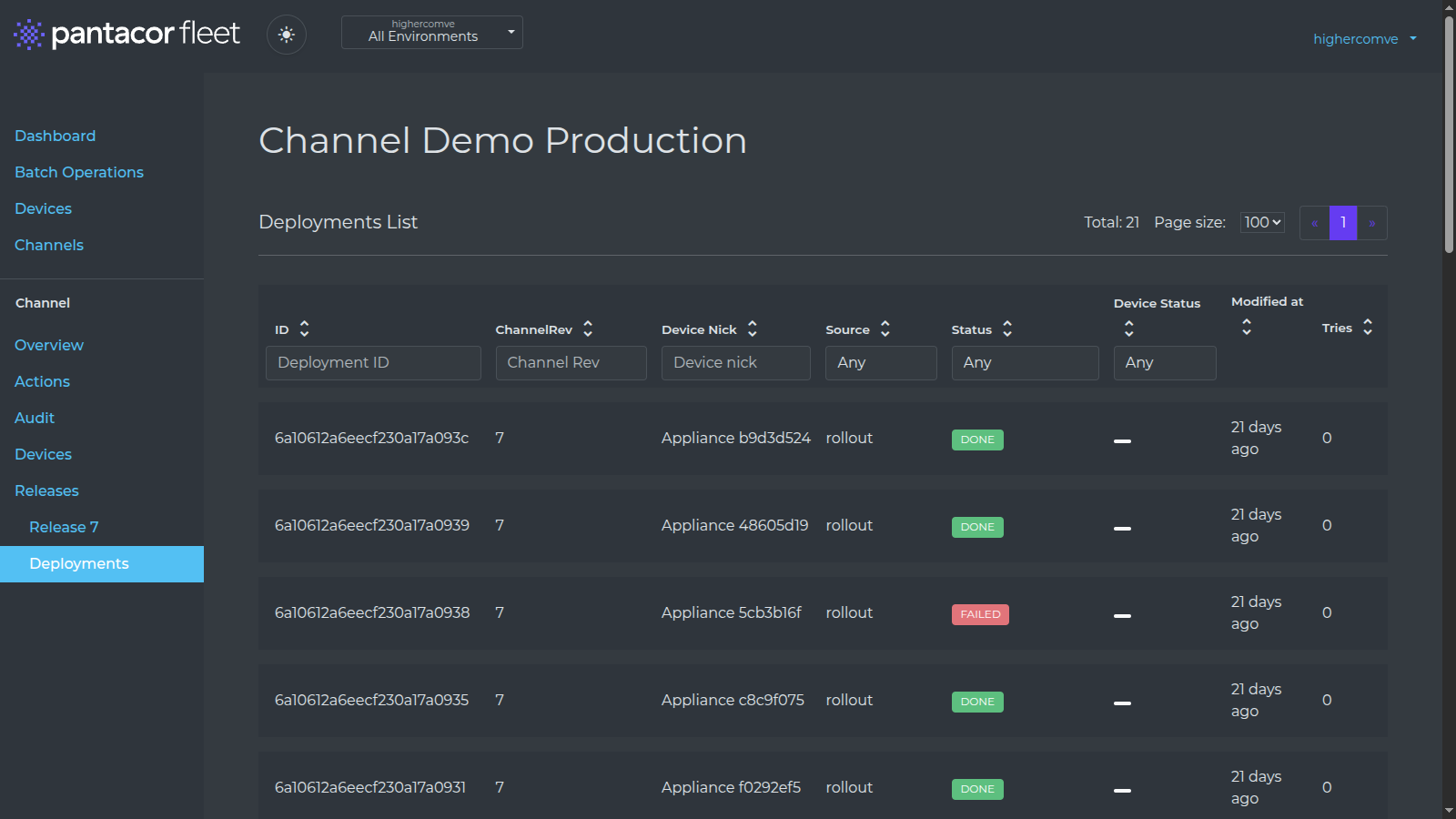
The deployment list
The list shows every deployment action created for the release, paginated. You can filter by status (for example pending, installing, done, or failed) to find the ones you care about.
Deployment detail
Open a deployment to see:
- The source release and the target device.
- Its current status and progress.
- Logs and any error messages, useful when a deployment fails.
Controlling a deployment
From a deployment you can:
- Pause a running deployment.
- Resume a paused one.
- Cancel it (while it hasn't started installing yet).
- Retry a failed deployment.
Once a deployment is installing, it can no longer be canceled — pause the parent release instead.
Appliance deployments waiting for components
An appliance deployment needs every component device to be present in the fleet. When some are missing — typically because they have not joined yet — the deployment does not fail straight away. Fleet reschedules it with an increasing backoff (10 minutes, 30 minutes, 1 hour, 12 hours, then 24 hours) and the status message names the missing components and when the next attempt runs. Only after the last attempt does the deployment fail for good. Retrying the release resets the counter and starts the ladder again. An appliance with no matching devices at all waits the same way; a release that defines no components still fails immediately.
Deployments of deleted devices
Deleting a device does not stop the deployments already created for it, and a deleted device never reports back. Left alone, a standalone deployment would wait forever, and an appliance deployment would stay in installing even after every remaining component finished, because one of its component deployments could never complete.
Fleet runs a garbage collector that sweeps every few minutes (five by default) and closes pending deployments whose device has been deleted:
- The deployment action is removed from the deployment views and marked
deleted, with a status message naming the deleted device. - Deployments that already finished are left untouched as history.
- An appliance deployment whose component was removed is re-evaluated right away. If its other components are done, it completes; if the release still expects that component, it goes back to waiting for components so a replacement device that joins later can pick it up.
Related
- Releases — what deployments deliver.
- Devices — what they deliver to.
- Monitoring a rollout — watch progress and know when to intervene.
- Deployment actions (concept) — the full lifecycle and statuses.