Appearance
Permissions
The Permissions screen is where you control who has access to your workspace and what they can do. How the pieces fit together — built-in roles, custom roles, capabilities and environments — is explained in Access control.
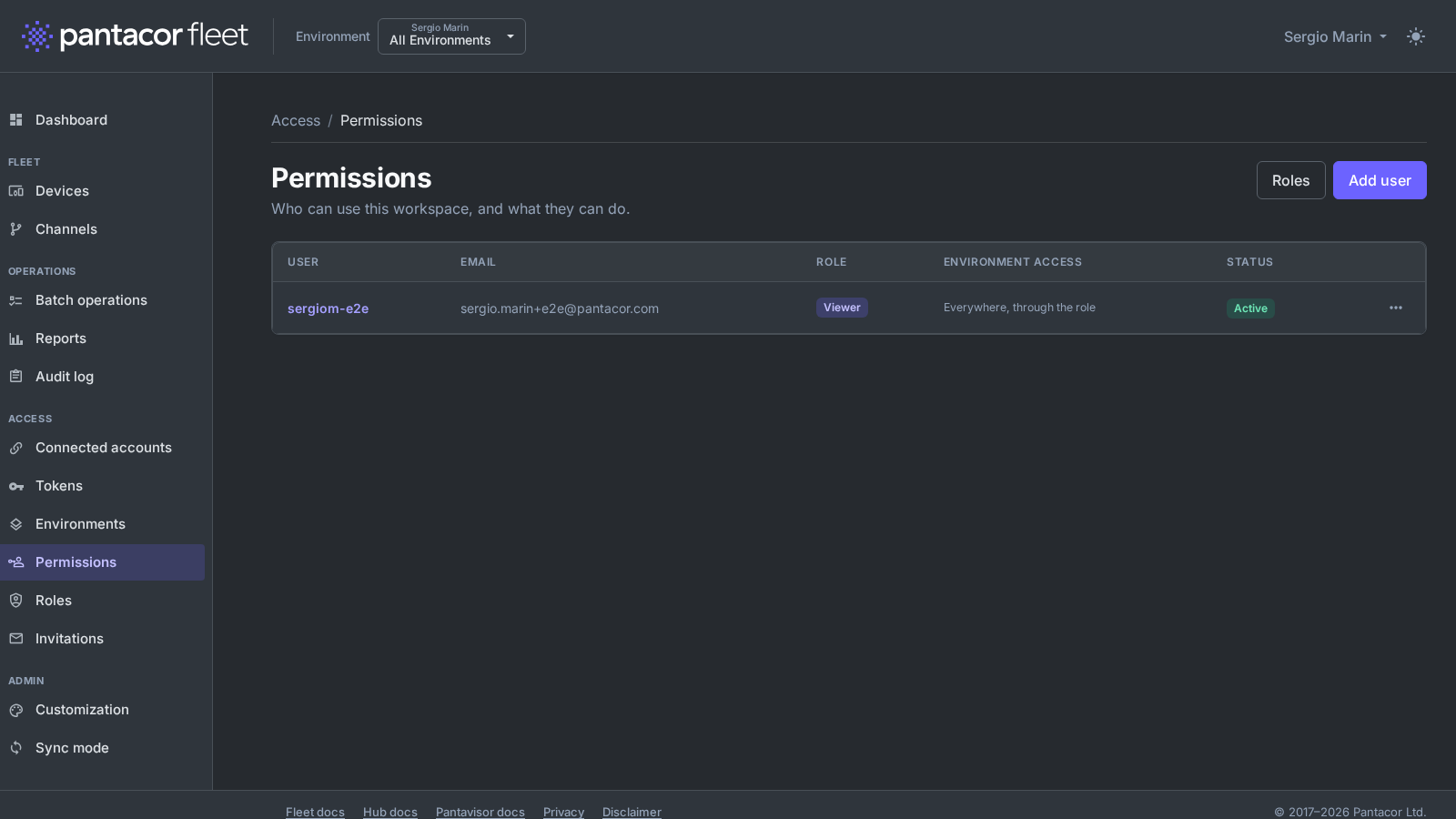
The permissions dashboard
The dashboard lists everyone with access. For each person it shows:
- their name and email,
- their role,
- their access: how many environments they can use, how many workspace permissions and custom roles they hold, and a one-line summary such as "Contributor on Production",
- their status: Invited until they accept, then Active.
Click a row to open that member's access page. The ⋯ menu on each row has Edit access and Remove access.
Inviting someone
Use Add user to invite someone by email. Choose their access across the workspace and, if you use environments, the role they get in each one. They gain access once they accept the invitation from their own Invitations screen.
A member's access page
The access page has two tabs.
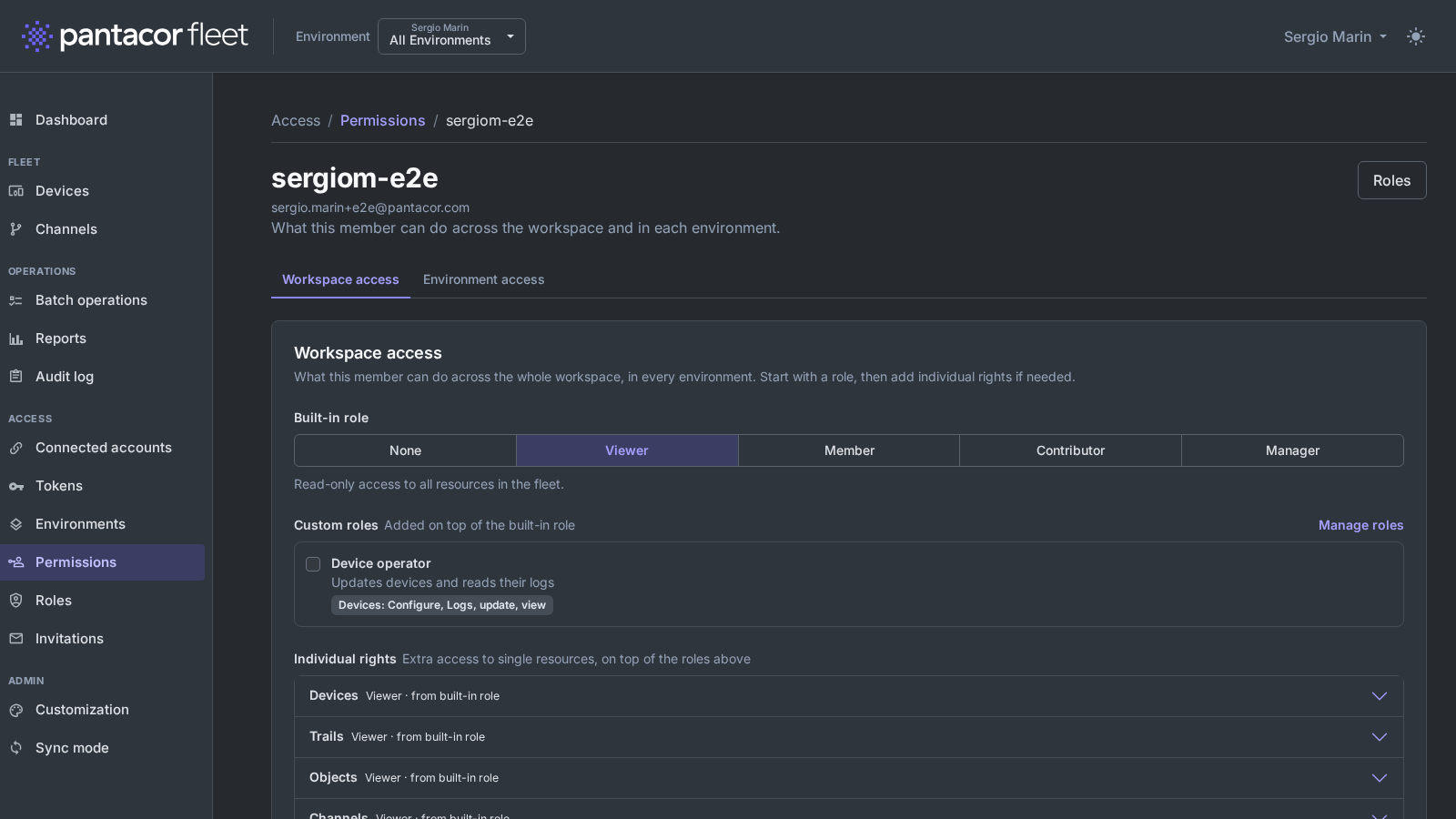
Workspace access
What the member can do across the whole workspace, in every environment:
- Built-in role — None, Viewer, Member, Contributor or Manager.
- Custom roles — roles you defined, added on top of the built-in role. Each shows what it grants.
- Individual rights — extra access to one resource at a time, on top of the roles above. Open a resource to give a stronger built-in role on it alone, or single capabilities such as Logs or SSH on devices. Rights the member already has through a role are shown ticked and locked, with what they come from ("Included in Manager").
Environment access
One card per environment. Tick an environment to give the member access to it, then choose:
- the built-in role they hold there, and
- any custom roles that apply only there. Grants of a custom role that only work across the workspace are shown struck through.
A card shows Grants nothing yet when the member has access to the environment but no role in it.
Select Save changes to apply everything at once. The member has the new access straight away; they do not need to sign in again.
Removing access
Choose Remove access from a member's ⋯ menu and confirm. They lose access to every resource and environment of the workspace at once.
Who can change permissions
The workspace owner can change anything. Other members can change permissions only if their access allows it, and only ever grant access they hold themselves — see You can only grant what you hold.
Related
- Roles — create custom roles to assign here.
- Access control — roles, capabilities and how they combine.
- Invitations — the other side: accepting access.
- Environments — per-environment roles and members.
- Tokens — programmatic access for integrations.