Appearance
Roles
A custom role bundles actions on Fleet resources under one name, such as a "Device operator" who can update devices and read their logs. You define a role once on the Roles screen, then assign it to members on their permission page, across the workspace or within one environment.
Open it from Access › Roles in the sidebar, or the Roles button on the Permissions screen.
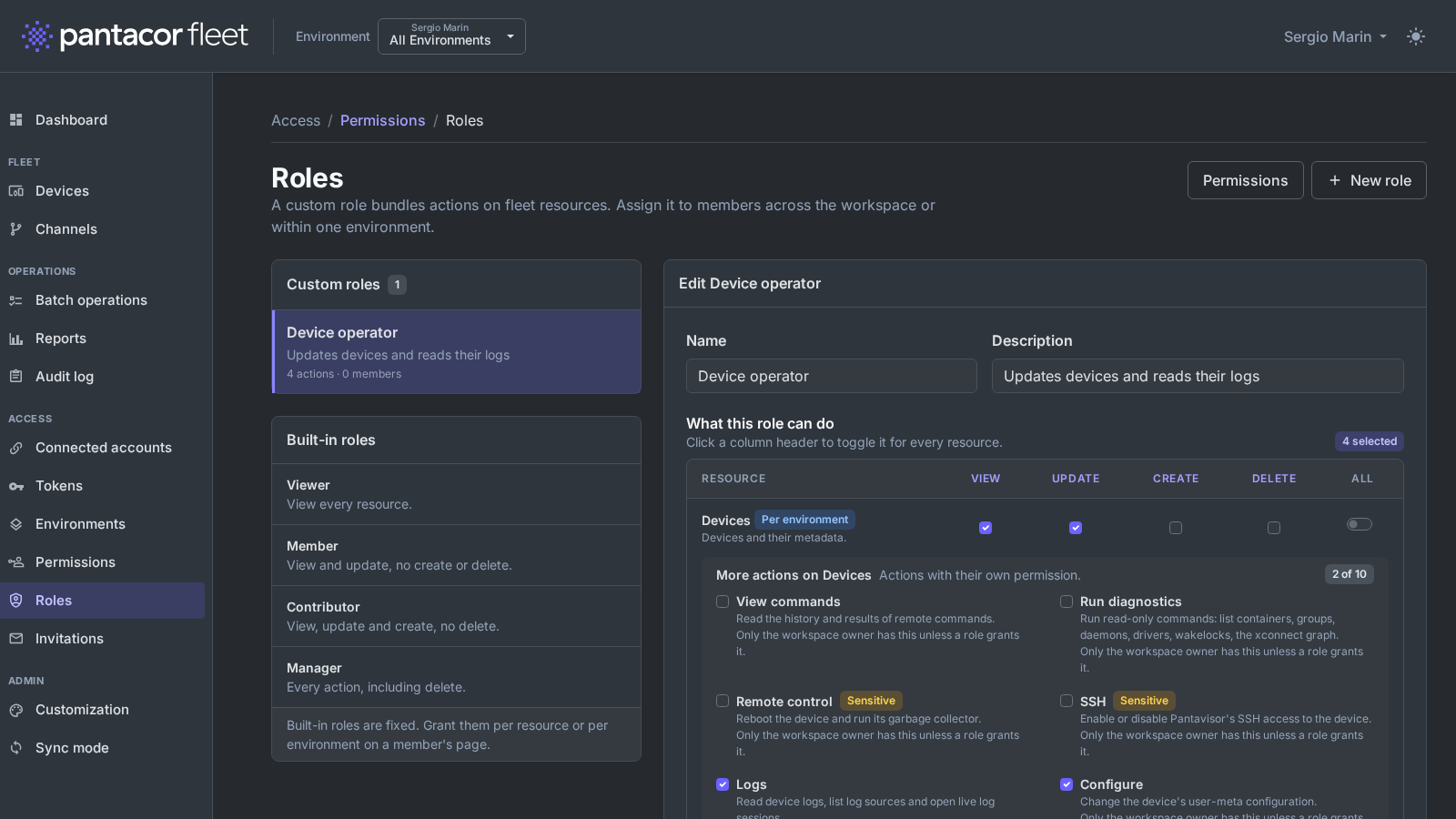
The Roles screen
- Custom roles lists your roles, with how many actions each grants and how many members hold it. Select one to edit it.
- Built-in roles recaps Viewer, Member, Contributor and Manager, which custom roles are added on top of.
Creating a role
- Select New role.
- Give it a name and, optionally, a description of what members with the role do.
- In What this role can do, tick the actions it grants:
- one row per resource, with a column for View, Update, Create and Delete; click a column header to toggle it for every resource, or the All switch to toggle a whole row;
- under a resource that has them, More actions lists its capabilities, such as SSH, Logs or Deploy on devices.
- Select Create role.
Granting Update, Create or Delete also grants View.
Resources marked Per environment also take effect when the role is assigned within one environment. The others apply only when the role is assigned across the workspace. Capabilities marked Sensitive control access, touch secrets or act directly on devices.
You can only put actions into a role that you hold yourself.
Editing a role
Select the role, change it, and select Save role. Everyone who holds the role gets the new access straight away.
Deleting a role
Select the role and choose Delete role, then confirm. Everyone who held it loses the access it gave them at once. This cannot be undone.
Who can manage roles
Creating, editing and deleting roles needs the Manage roles capability. Only the workspace owner has it, unless a role grants it to someone else.
Related
- Permissions — assign roles to members.
- Access control — built-in roles, capabilities and how they combine.