Appearance
Devices
The Devices screen is where you browse, organize, and troubleshoot the machines Fleet manages. For the underlying concept, see Devices.
The device list
The list shows every device with its key state at a glance: its name, the channel it belongs to, the revision it's running, its latest deployment status, and its environment.
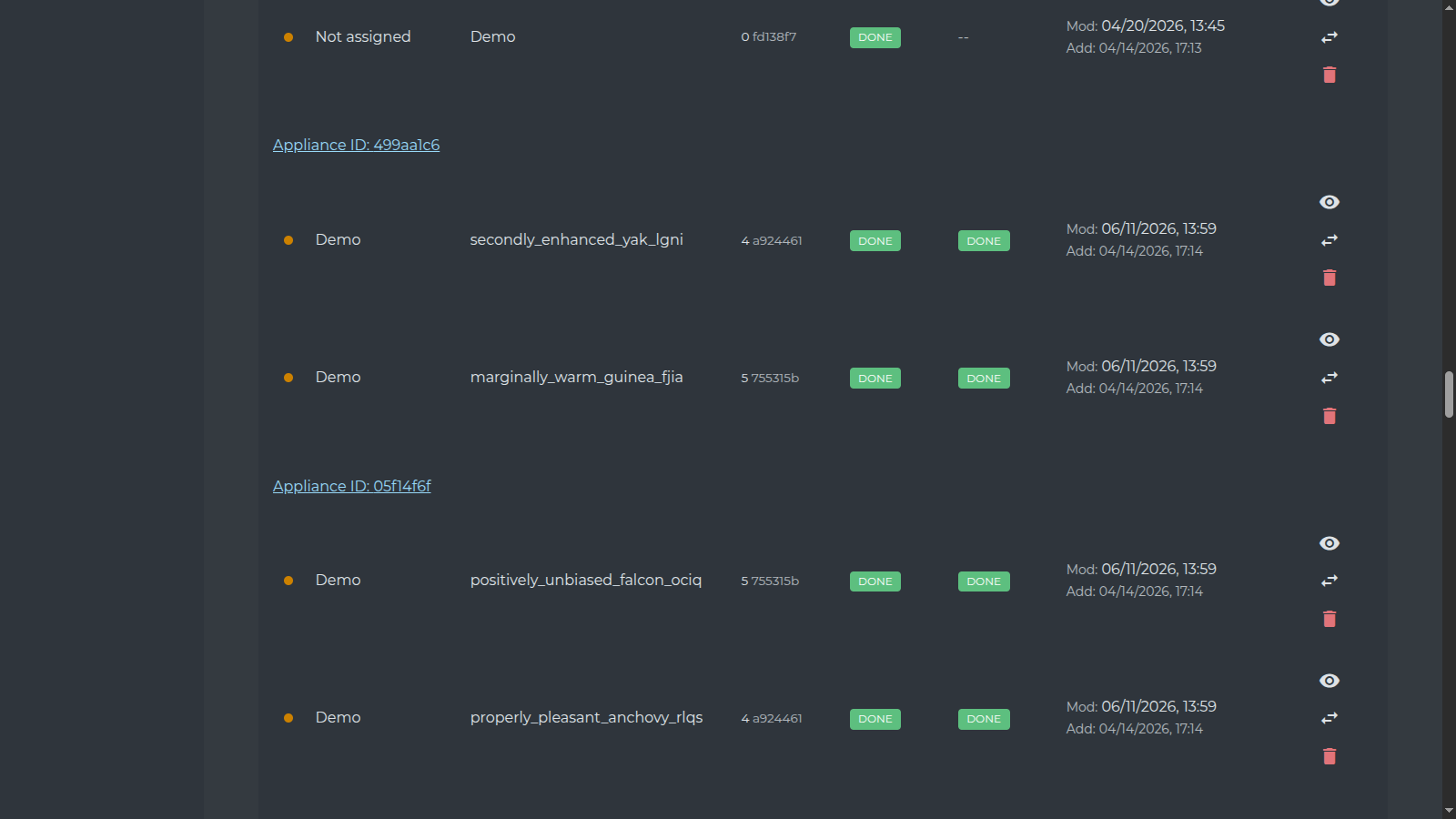
You can:
- Filter and sort by name, channel, revision, deployment status, or environment.
- Group by environment to see devices organized by context, or filter to devices without an environment.
- Select multiple devices to act on them together (see batch actions).
Assigning devices to channels
From the list you can:
- Assign a device to a channel.
- Reassign it to a different channel.
- Remove it from its channel (stops new updates from being scheduled).
- Match unassigned devices — preview which devices would be auto-assigned by channel label rules, then apply.
Device details
Open a device to see its detail view, organized into tabs:
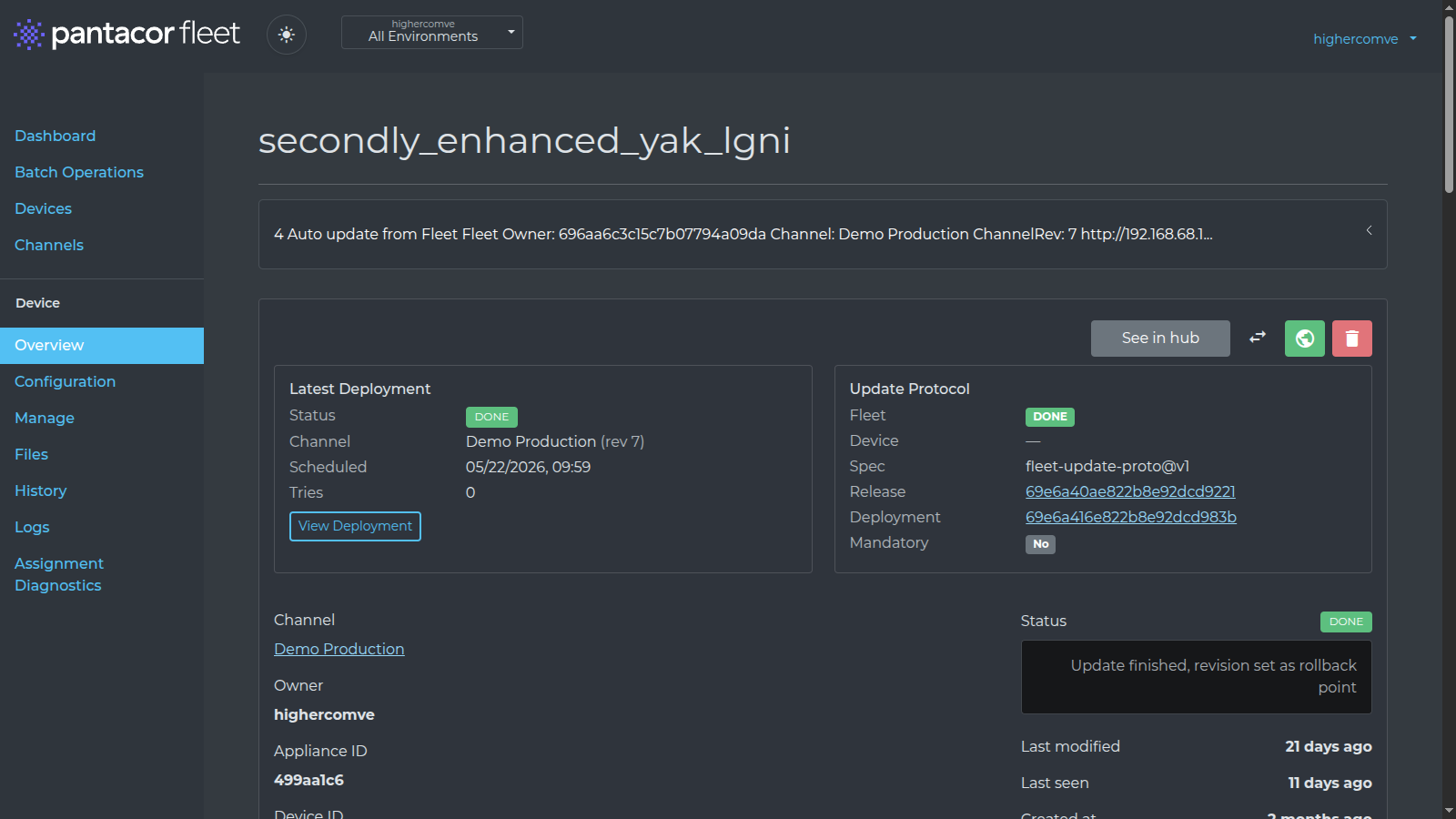
- Overview — current revision, metadata, latest deployment status, and environment.
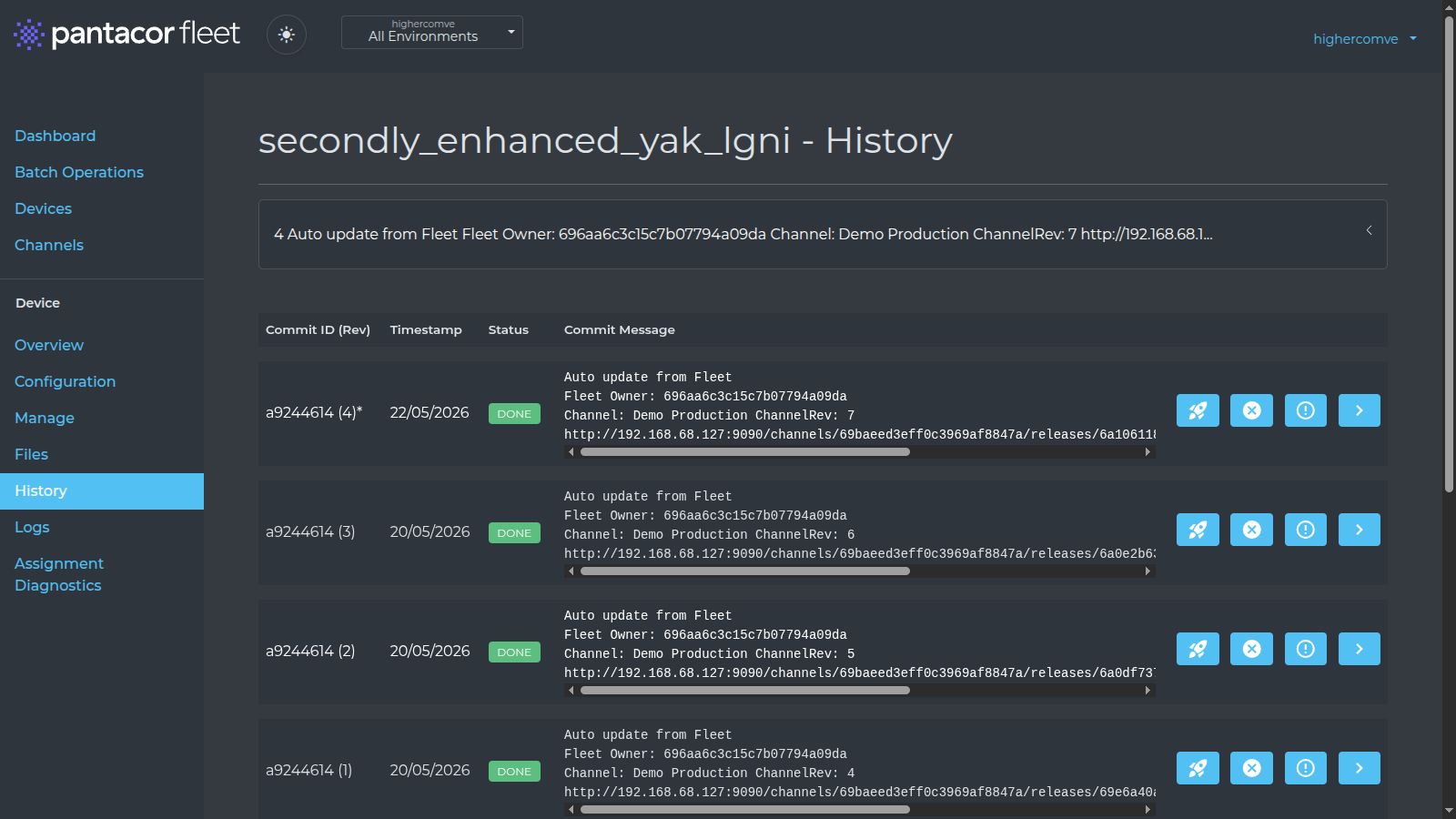
- History — every past revision/deployment. From here you can redeploy a previous revision, cancel a pending deployment, or mark a revision as "won't go".
- Logs — device logs for diagnostics and troubleshooting.
- Files — browse the files from the current or any previous revision.
- Configuration — the device's component/configuration state.
- Assignment diagnostics — why this device is or isn't matched to a channel (see Assignment diagnostics).
- Manage / metadata — view, add, edit, and delete the device's metadata key-value pairs.
Batch actions
Select several devices to apply one action to all of them:
- Assign (or change) their channel.
- Remove them from their channel.
- Delete them.
- Match unassigned devices to channels.
Bulk actions are recorded as batch operations so you can track their progress and results.
Deleting a device
Deleting a device asks you to confirm first (you may be asked to type the device's name) to prevent accidents.
Bulk deletion from the batch actions toolbar uses the same two-step flow: type the number of selected devices to unlock the button, then confirm once more. Closing the dialog resets the confirmation.
Deployments still pending for a deleted device are closed by Fleet's garbage collector shortly after — see deployments of deleted devices.
Related
- Channels — assign devices to groups.
- Assignment diagnostics — troubleshoot matching.
- Devices (concept) — what a device is.