Appearance
Releases
The Releases screen is where you create versioned software and ship it to a channel's devices. For the underlying concept, see Releases.
The releases history
Every channel has a Releases history — the ordered list of every release it has produced, newest first. Each row shows the revision, its current status (active, superseded, failed, new, …), the release ID, vendor id, commit message, and when it started.
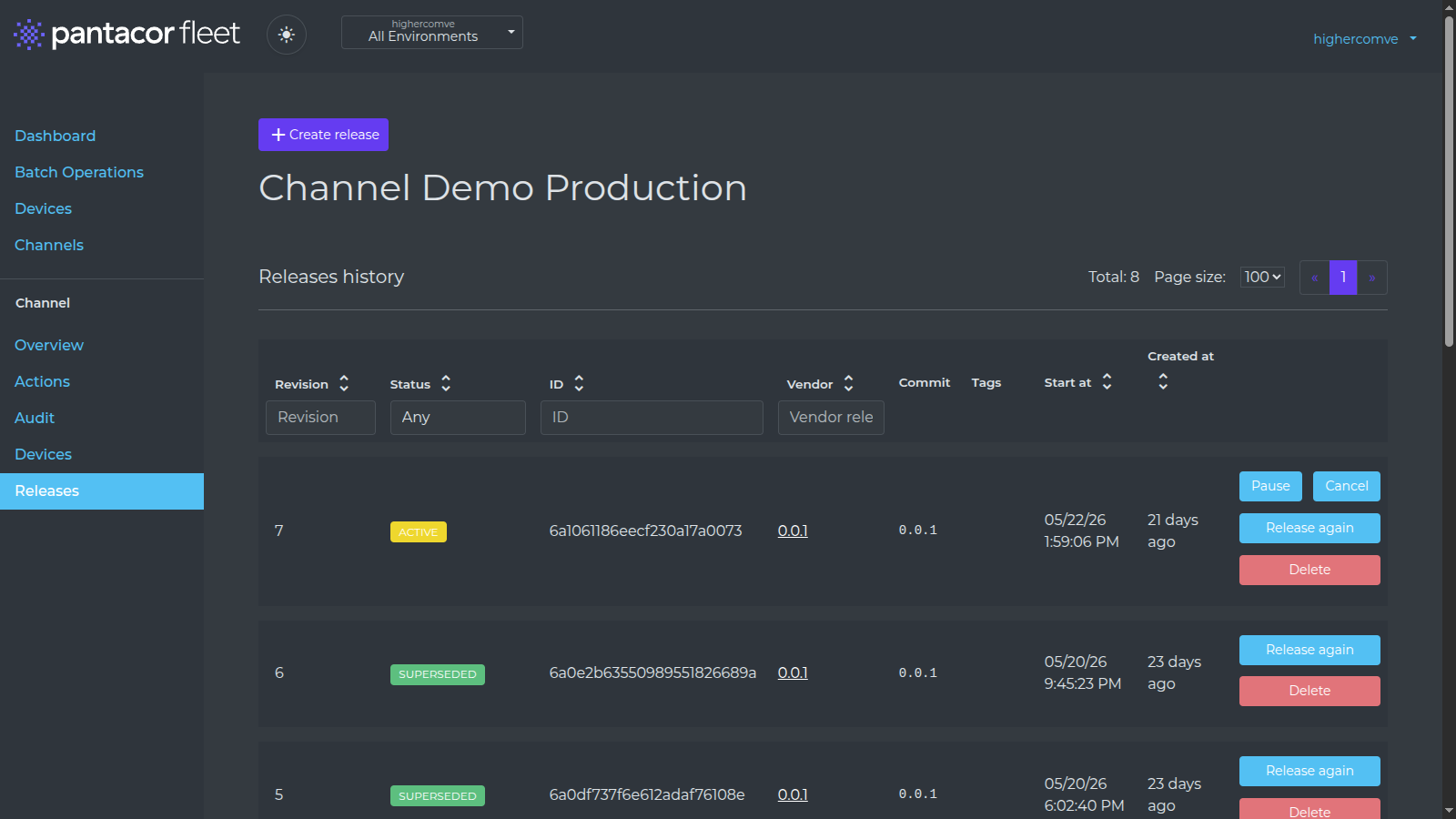
The actions on each row depend on its status — a new release offers Play, an active one offers Pause, Cancel, and Release again, and a release that has not produced any deployments can be Deleted. Use the Status filter to narrow a long history down to, say, only failed or only active releases.
Creating a release
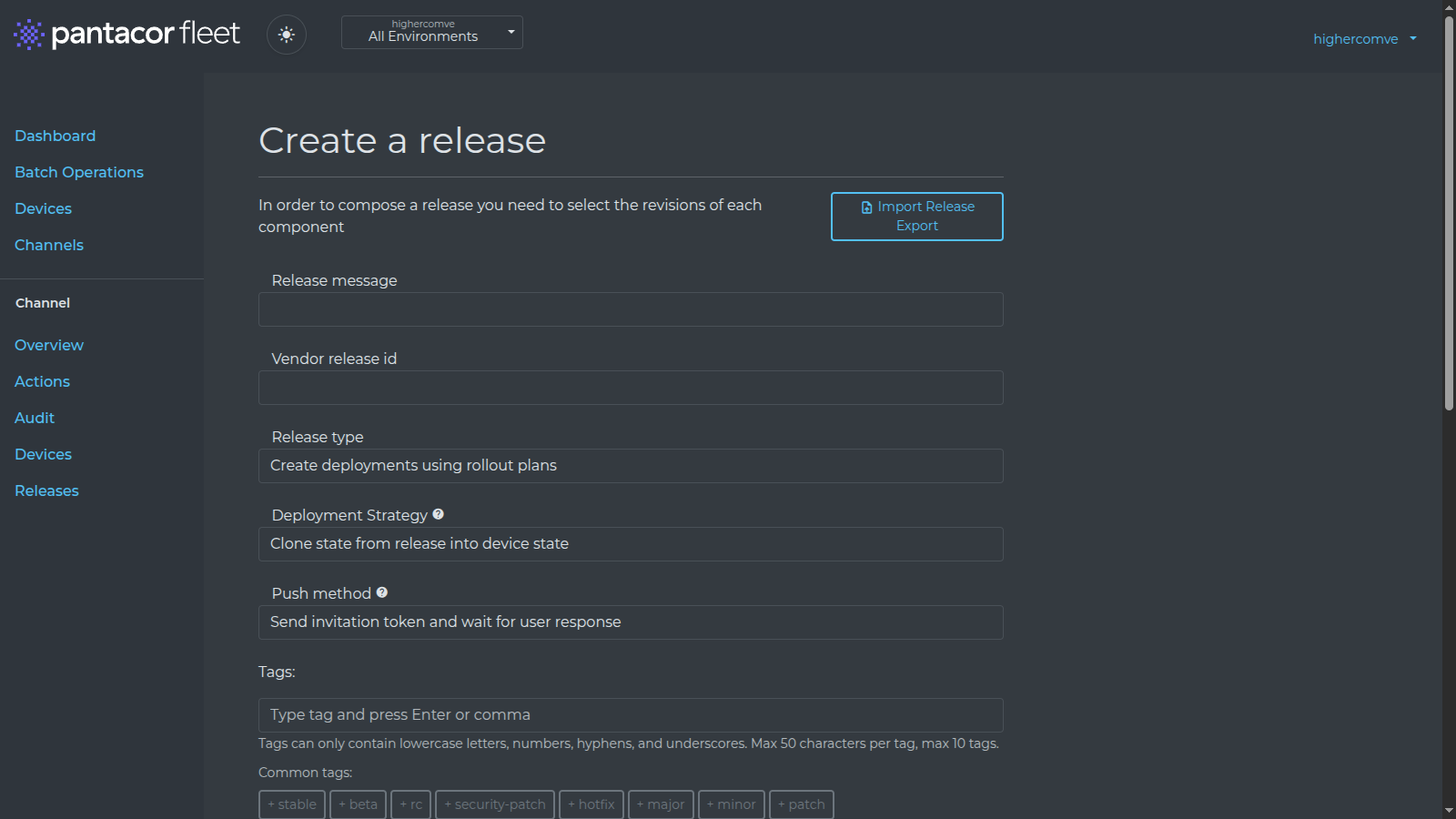
You create a release for a channel by providing the software state, which you can:
- Upload as a device-state archive (
.tar.gz), or - Import from an existing device revision.
You also set:
- A commit message describing the change.
- A push method — whether devices install automatically or after approval (see push methods).
- A type — linear (all at once) or rollout (in waves).
- Optional tags and a strategy.
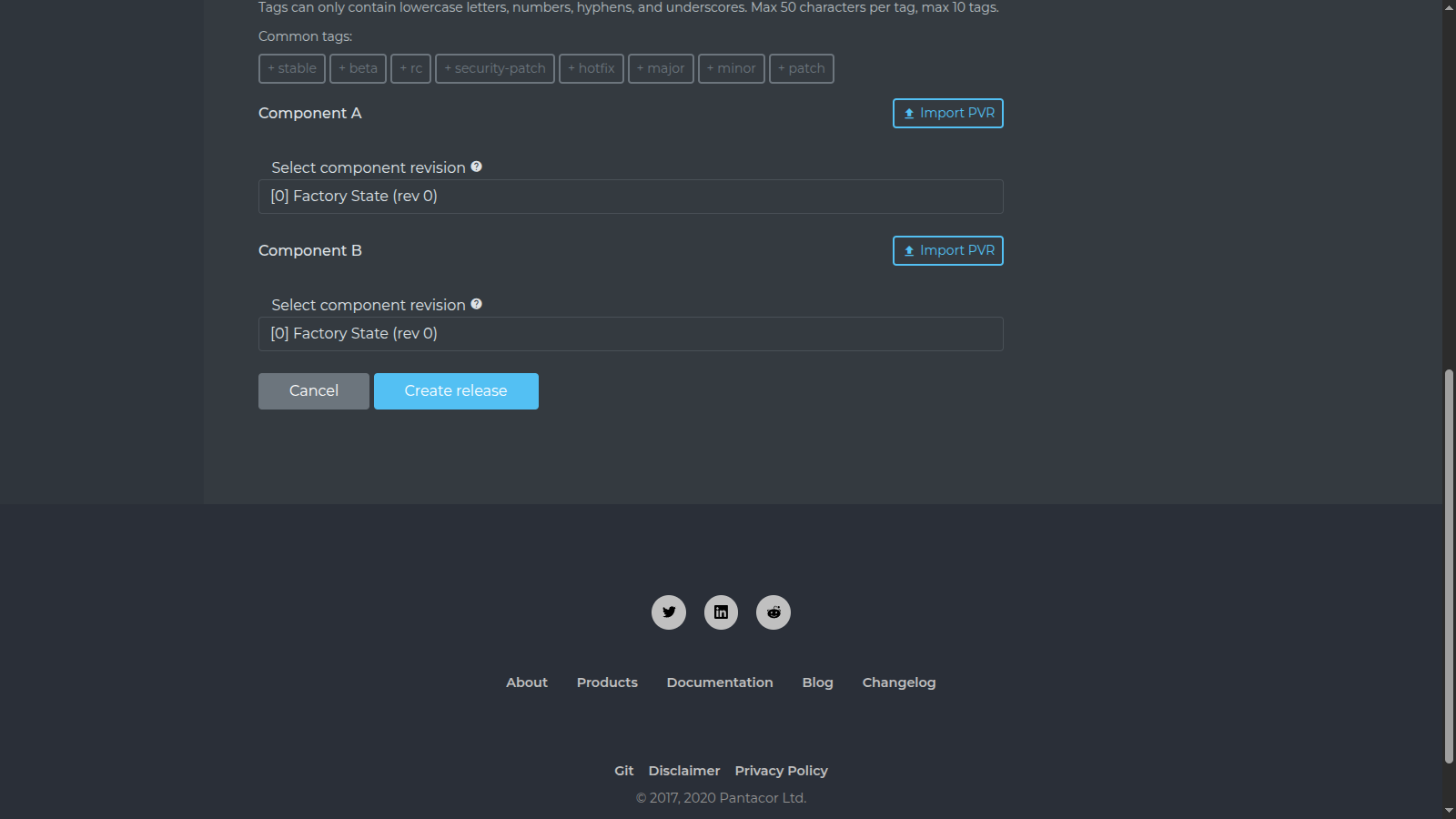
For appliance channels, you then pick the revision of each component (or import a PVR export per component) before creating the release:
The release overview
Opening a release shows its overview — everything about what this release is and the controls to ship it.
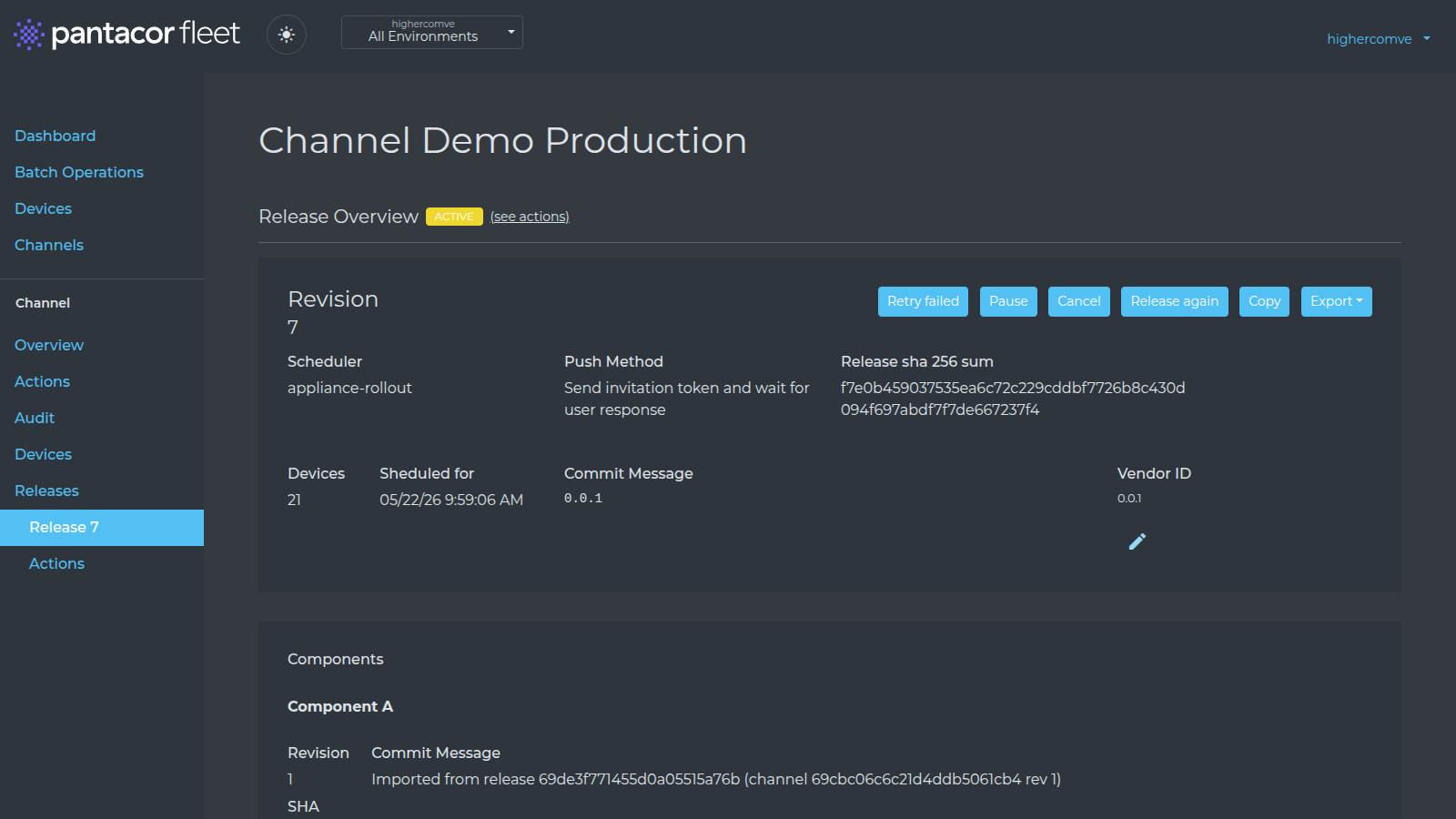
The header carries the release status (here active) and a (see actions) link to its system operations. The card below summarizes the release:
| Field | What it tells you |
|---|---|
| Revision | The release's revision number on the channel. |
| Scheduler | How deployments are scheduled (e.g. rollout, appliance-rollout). |
| Push Method | Whether the device installs automatically or waits for acceptance. |
| Release sha 256 sum | The content hash of the release state. |
| Devices | How many devices this release targets. |
| Scheduled for | When delivery begins (now, or a future time). |
| Commit Message / Vendor ID | Your release message and external vendor identifier. |
For an appliance channel, a Components section lists each component with its revision, commit message, SHA, and the required/selection labels that decide which devices it applies to.
Shipping and controlling a release
The buttons on the overview run operations on the whole release:
- Play — start delivering it to the channel's devices (shown while a release is
new). - Pause — halt pending deliveries; resume later.
- Cancel — stop it; pending deployments won't continue.
- Retry failed — re-attempt only the deployments that failed.
- Release again — ship the same release once more (for example to devices that have since joined the channel).
- Copy the release to another channel, or Export it as a
.tar.gz.
Playing a release creates one deployment action per targeted device, which you then watch on the same page.
Watching deployment state across the fleet
Below the overview, the release tracks how delivery is going across every device — so you can see at a glance how many succeeded, how many are pending, and how many failed.
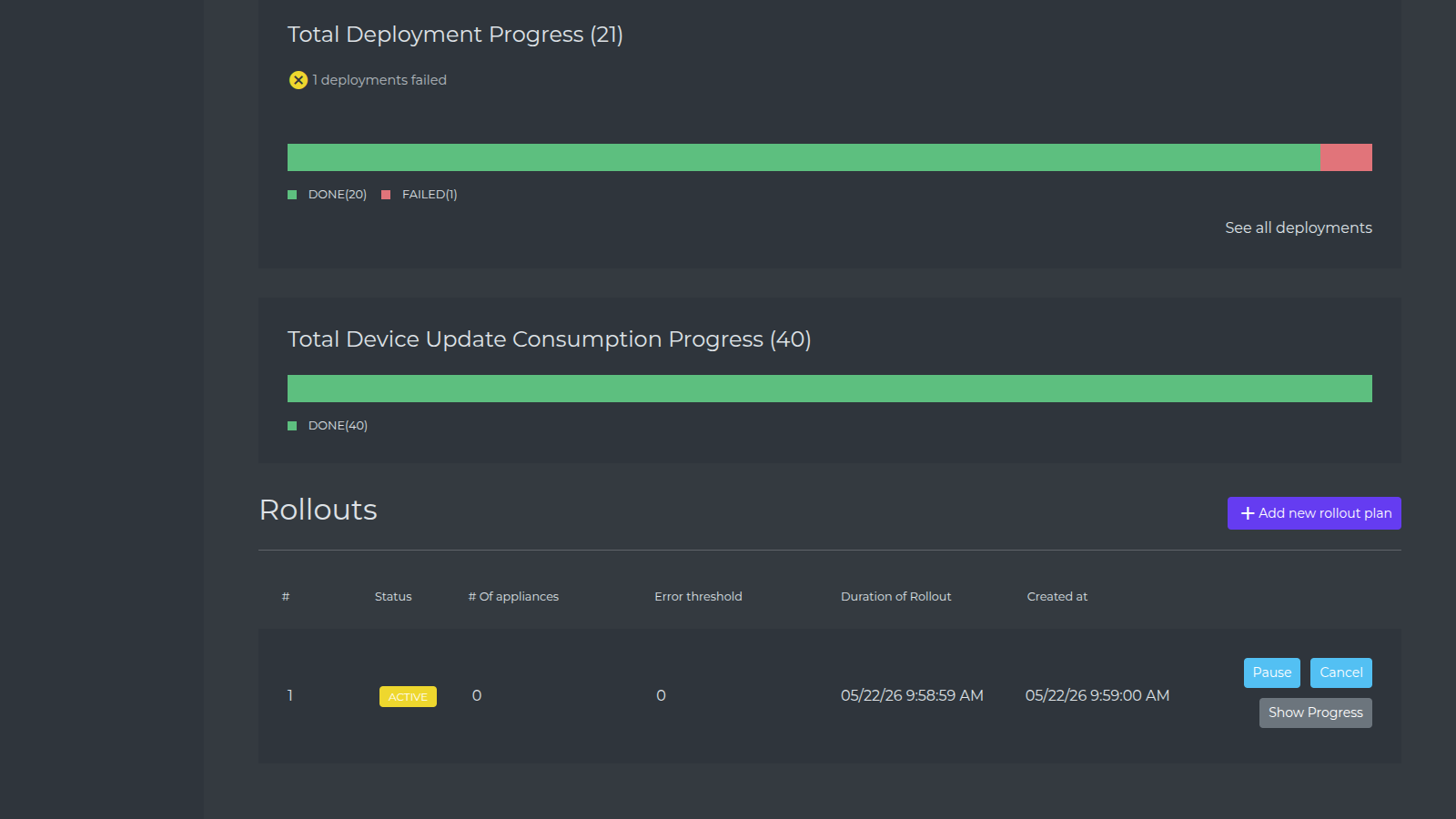
- Total Deployment Progress shows the breakdown of this release's deployment actions by status — a green/red bar with
DONEandFAILEDcounts, and a banner when any have failed. - Total Device Update Consumption Progress tracks how many devices have actually consumed (installed) the update.
- See all deployments opens the full per-device list (below).
The per-device deployments list
The deployments list has one row per device, so you can answer "did this device get the update, and if not, why?"
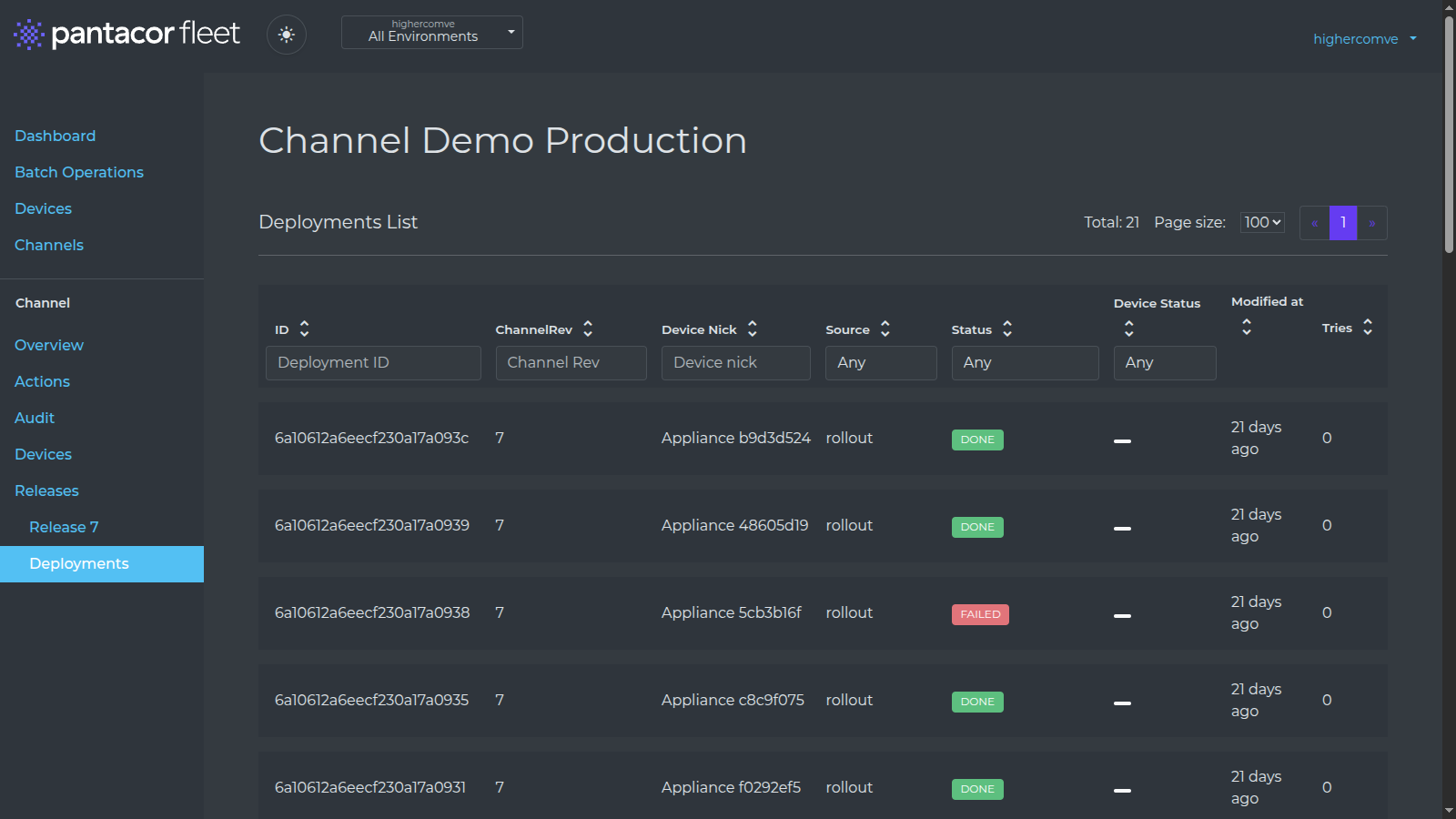
Each row shows the deployment ID, the channel revision, the device nick, the source (how it was created, e.g. rollout), its status (DONE, FAILED, INSTALLING, …), the device status, when it was last modified, and how many tries it has taken. Filter any column — for example set Status to FAILED to jump straight to the devices that need attention, then open one to read its logs.
For how to react to what you see here — retry, pause, or cancel — see Monitoring a rollout.
Creating a rollout
A rollout delivers a release in waves (plans) instead of all at once, so you can limit blast radius and stop early if a wave goes wrong (see the rollouts concept). The Rollouts section of a release lists its plans and lets you add new ones with Add new rollout plan.
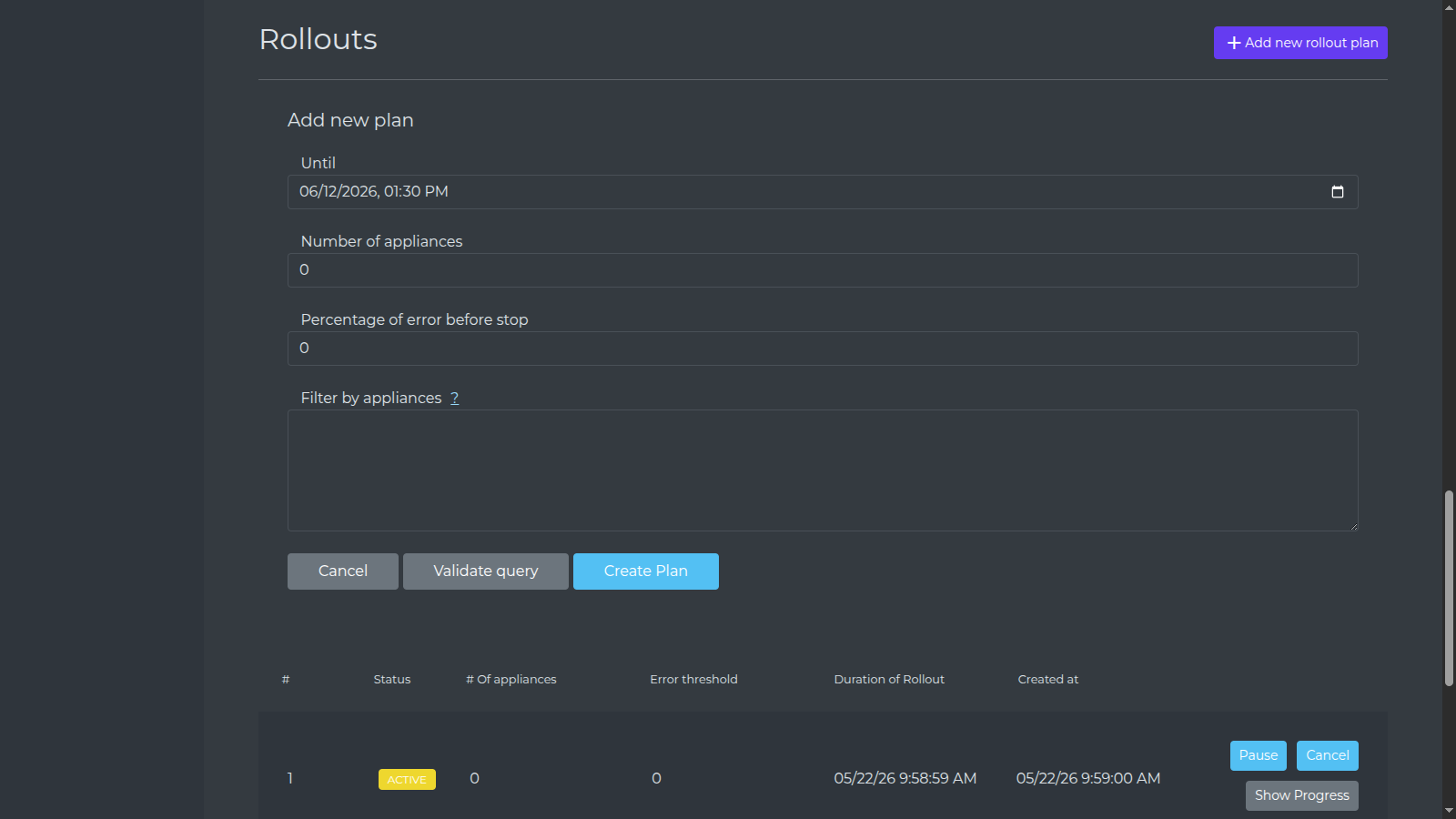
Each plan describes one wave:
| Field | What it controls |
|---|---|
| Until | The time window the wave has to complete. |
| Number of appliances | How many devices this wave covers. |
| Percentage of error before stop | The error threshold — if failures exceed it, the rollout halts instead of advancing. |
| Filter by appliances | An optional query to target a specific subset of devices for the wave. |
Validate query checks your appliance filter before you commit, and Create Plan adds the wave. Plans run in order, and in the rollouts table each plan shows its status, # of appliances, error threshold, and duration, with per-plan Pause, Cancel, and Show Progress controls. Build a rollout by adding a small first wave (a canary), confirming it succeeds, then adding larger waves.
Other actions
- Edit the release state.
- Export the release as a
.tar.gz. - Copy the release to another channel.
- Delete the release. Deletion is only offered for releases that have no deployments: once a release has been played, the button is disabled and a tooltip says how many deployments it has. To delete an eligible release you type its revision number and then confirm a second time. The API enforces the same rule and answers
409 Conflictif a release with deployments is deleted directly.
Related
- Channels — where releases live.
- Deployments — track delivery to each device.
- Monitoring a rollout — watch progress and know when to intervene.
- Push methods & rollouts — how a release reaches the fleet.