Appearance
Channels
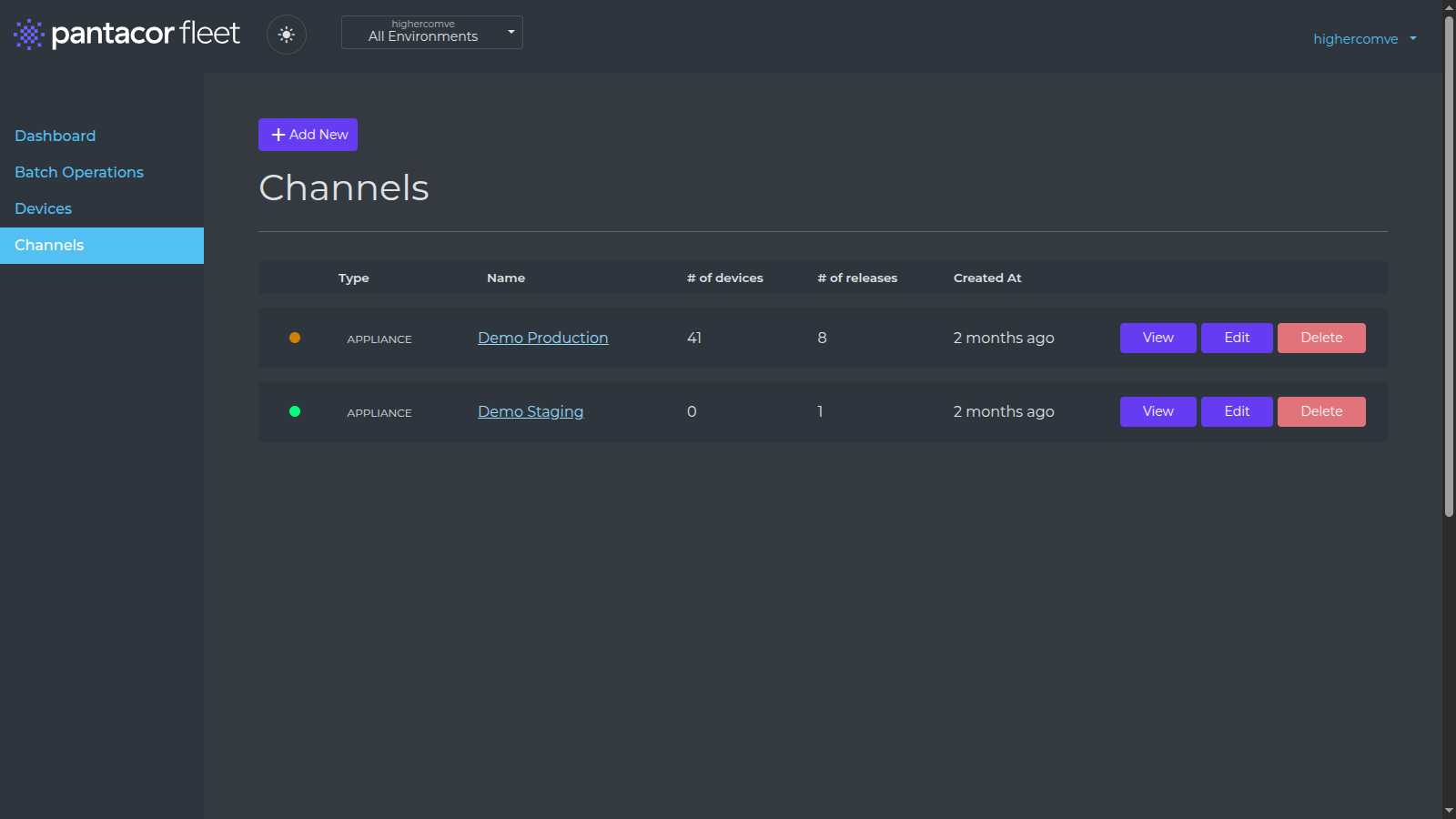
The Channels screen is where you define groups of devices and the software they should track. For the underlying concept, see Channels.
Creating a channel
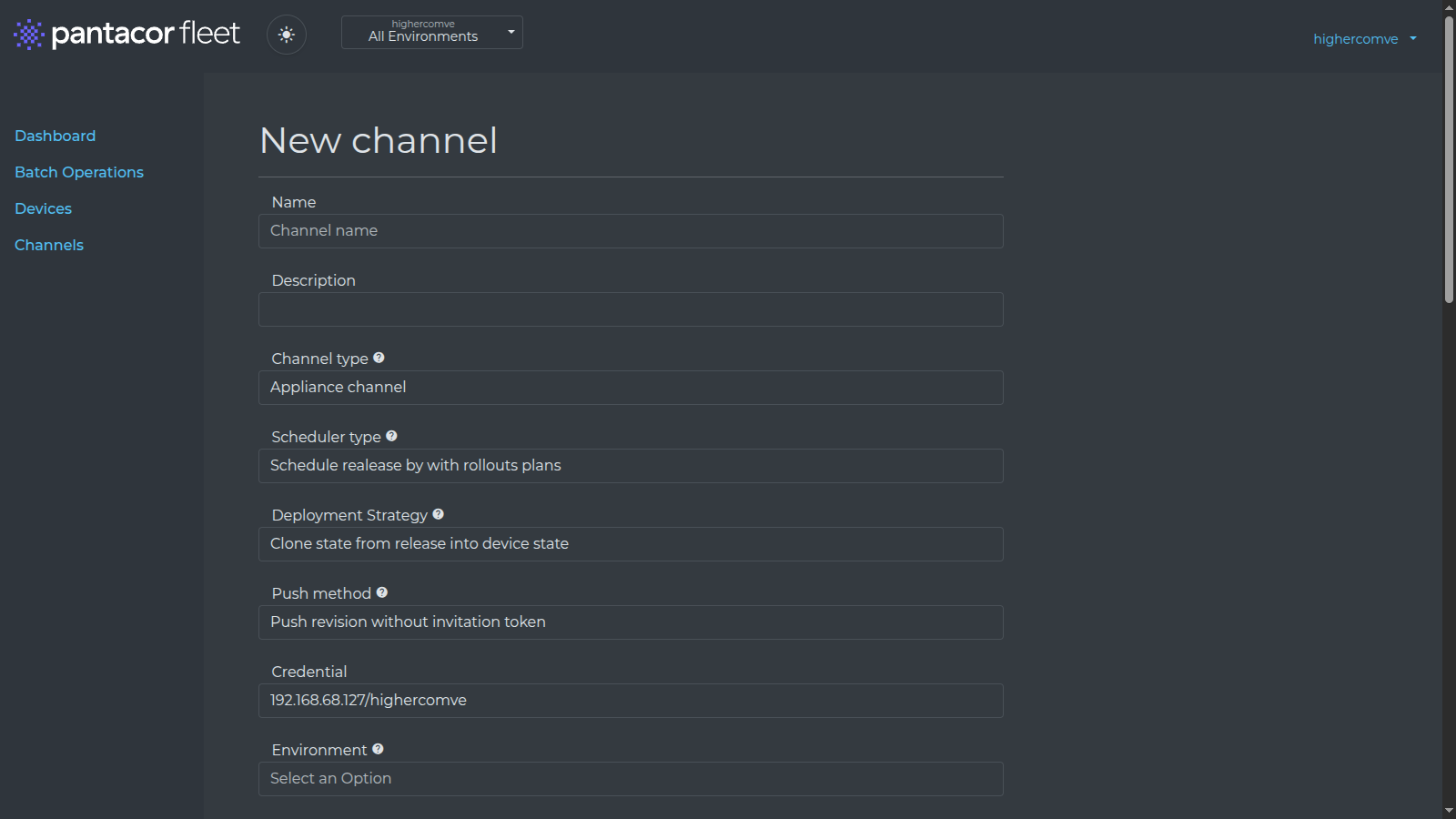
When you create a channel you set:
- A name.
- A type — standard, appliance, or addon (see channel types).
- A scheduler type — linear or rollout (see rollouts).
- A push method — how its releases reach devices (see push methods).
- A strategy — how the channel's state relates to the device's existing state.
- Device matching rules — labels/selectors that decide which devices belong to the channel.
- An optional environment and credentials configuration.
- An optional source URL — the pvr URL of the leader device the channel tracks. Leave it empty and Fleet creates a leader device for you in the hub when you save, named
<channel>-channel-leader-<random>, and stores its URL on the channel. Appliance channels do the same for each component that has no source.
You can edit any of these later from the channel's overview.
The channel overview
Opening a channel shows a tabbed view:
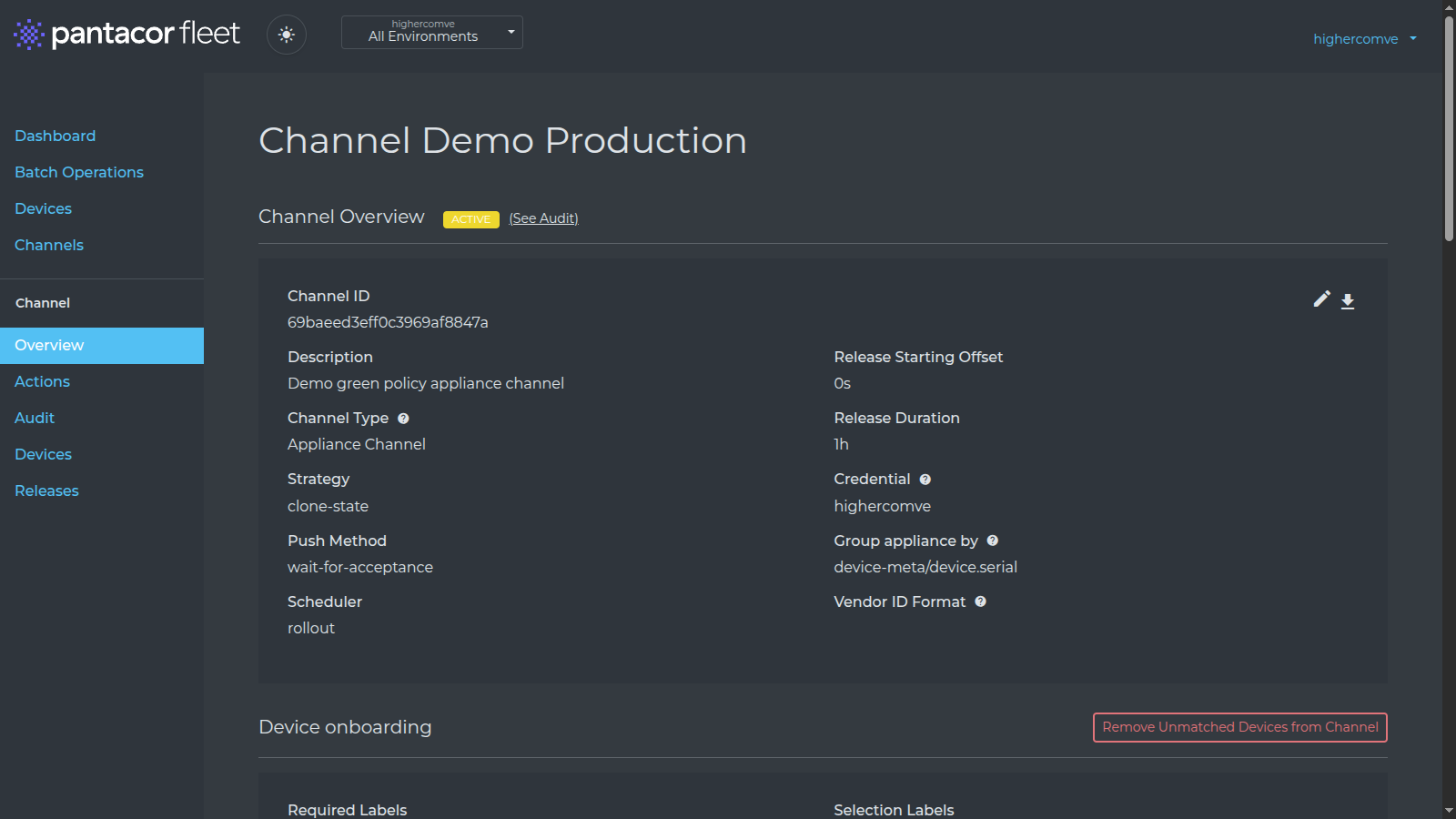
- Overview — channel settings, the latest release, and device count.
- Releases — the channel's release history and the deployment status of each.
- Devices — the devices currently in the channel, with the same filter, sort, and management actions as the main Devices screen.
- Actions — operations performed on the channel, each with progress and logs.
- Audit — a history of who changed what on this channel.
Managing channel membership
From a channel you can keep its device set accurate:
- Match unassigned devices — preview and apply auto-assignment based on the channel's label rules.
- Kick unmatched devices — remove devices that no longer match.
- Resume pulling — if the channel's tracking of its source was paused.
Deleting a channel
Deleting a channel runs as an action you can follow from the Actions tab. Every device in the channel is kicked individually: its channel, environment, and appliance assignment are cleared, its pending deployments are dropped, and one log line per device shows progress. A device that fails to leave does not stop the rest — the remaining devices are still processed, and a final bulk unassign sweeps up anything left behind. Once the devices are out, the channel itself is removed.
Working with releases
From the Releases tab you can create a release for the channel, copy a release to another channel, and open a release to manage its rollout and run operations on it. See Releases for the full release workflow.
Related
- Releases — the versions a channel produces.
- Devices — what channels contain.
- Channels (concept) — what a channel is.